
Veo 4 AI Video Generator
Veo 4 AI turns prompts, image references, or video cues into cinematic clips with smooth motion, scene direction, and HD downloads.
Veo 4 AI Video Generator
Veo 4 AI Video Gallery
Explore Veo 4 AI examples for cinematic scenes, portraits, product motion, outdoor atmosphere, and social video ideas.
Veo 4 AI - flower field motion test
A calm outdoor shot for judging wind, depth, layered detail, and continuous camera drift in a nature video.
Veo 4 AI - fashion portrait animation
A portrait-driven clip for checking face detail, wardrobe stability, soft movement, and cinematic lighting.
Veo 4 AI - ocean light continuity demo
A water scene that helps compare how light, reflections, and camera pacing stay coherent across frames.
Veo 4 AI - road trip cinematic sequence
A travel shot for judging pacing, vehicle movement, landscape detail, and consistency during longer camera moves.
Veo 4 AI - runway style loop
A short editorial loop that shows how pose, styling, and scene mood can stay aligned across repeated frames.
Veo 4 AI - dramatic atmosphere study
A high-contrast scene for reviewing depth, timing, texture, and visual tension in cinematic prompts.
What Is Veo 4 AI
Veo 4 AI is an independent browser workspace for turning prompts, reference images, and video ideas into polished draft clips.
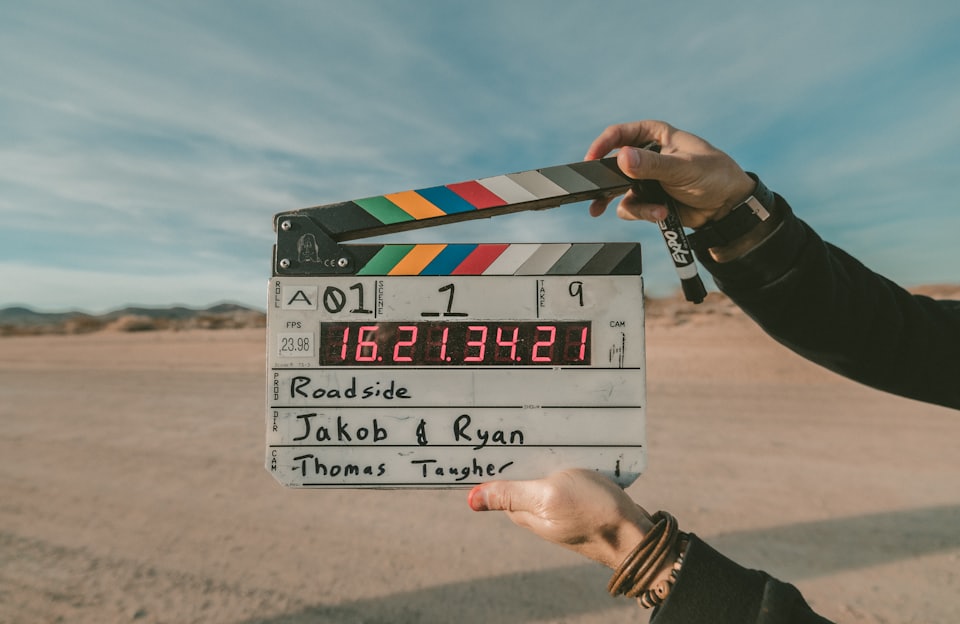
Veo 4 AI prompt to video workflow
Write a scene brief with subject, setting, camera movement, mood, and pacing so Veo 4 AI can shape a clearer video draft.
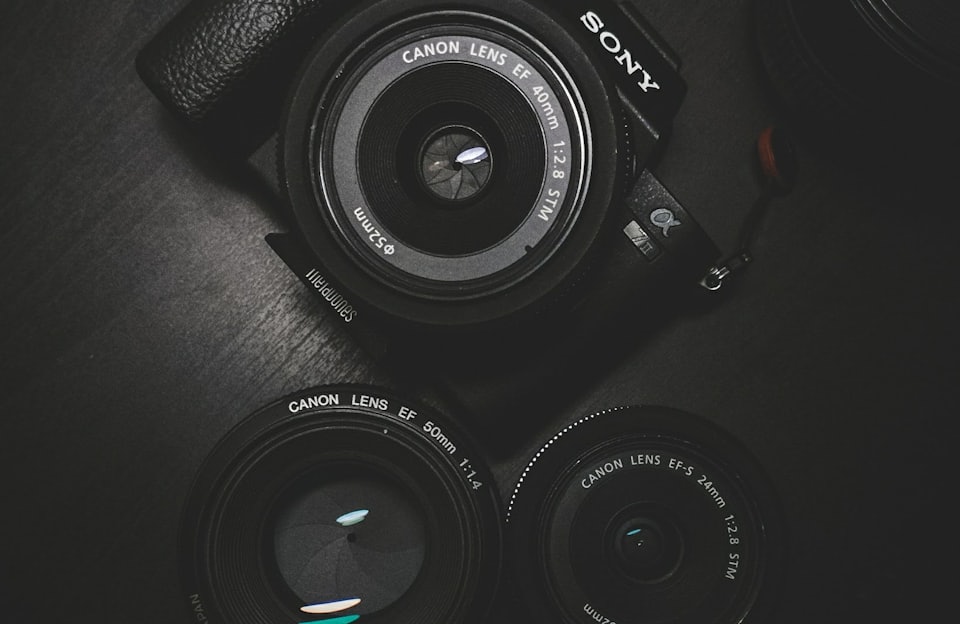
Veo 4 AI text and reference inputs
Use text, image, or video references to guide composition, character look, product details, lighting, and motion intent.

Veo 4 AI motion and camera direction
Plan shots with pans, push-ins, tracking moves, slow motion, close-ups, and physical action that feels easier to review.
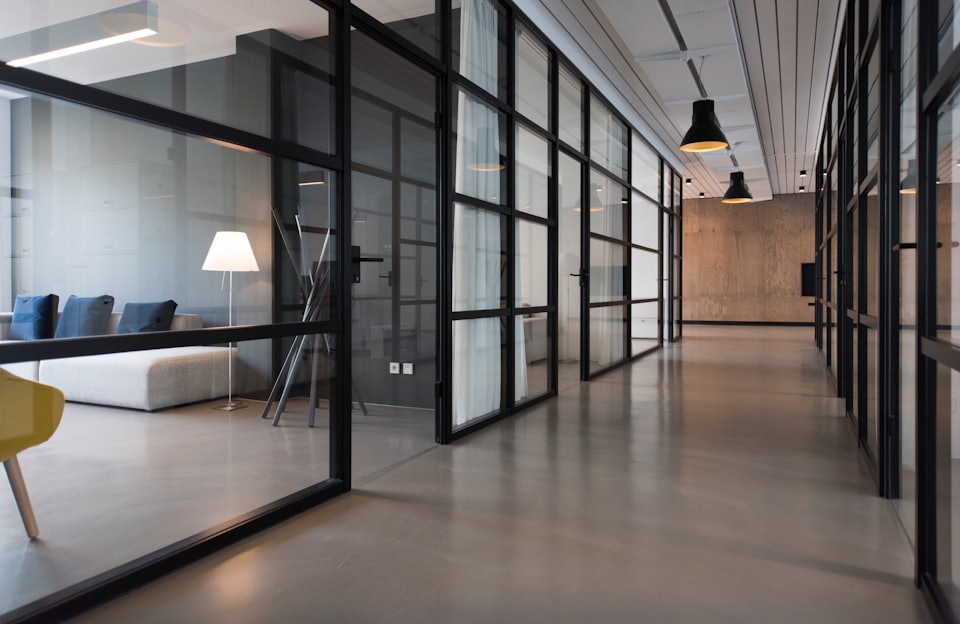
Veo 4 AI output for real projects
Create social ads, ecommerce clips, concept scenes, storyboards, and pitch videos without waiting for a full production shoot.
Veo 4 AI Features
Veo 4 AI focuses on prompt control, reference-led video creation, cinematic motion, preview review, and practical downloads.
Veo 4 AI prompt control
Describe actors, products, scenes, actions, lens style, camera movement, and pacing in one prompt for stronger direction.
Veo 4 AI image-to-video creation
Start with a product photo, portrait, concept frame, poster, or mood image and guide the output toward controlled motion.
Veo 4 AI Video Generator consistency
Build related shots where subject identity, wardrobe, lighting, background tone, and composition stay easier to compare.
Veo 4 AI cinematic motion
Test prompts with walking, fabric movement, water, product handling, sports action, vehicle shots, and camera tracking.
Veo 4 AI for marketing teams
Produce campaign tests, ecommerce videos, social clips, launch teasers, and client previews before booking production time.
Veo 4 AI review workflow
Compare prompt versions, adjust references, manage credits, preview outputs, and download clips for feedback cycles.
How to Use Veo 4 AI
Use Veo 4 AI in three simple steps: enter a prompt, choose video settings, then generate and download the finished clip.
Enter your prompt
Describe the video you want in text, and optionally upload an image or video as a reference for the subject, scene, or motion.
Choose parameters
Set video duration, aspect ratio, output quality, and any reference options before starting a Veo 4 AI generation.
Generate and download
Click generate, wait a short moment, preview the result, then download the HD video once the Veo 4 AI clip is ready.
Veo 4 AI Reviews
Creators use Veo 4 AI for prompt tests, image-to-video drafts, client previews, product clips, and fast campaign ideas.

Jordan Vance
“Veo 4 AI helped our team turn one product moodboard into a stronger video teaser for a client review.”

Linda Wu
“The image reference workflow kept our product shape clear while we explored several social video hooks.”

Chen Wei
“Veo 4 AI gave my fantasy scene smoother camera movement before I committed time to final boards.”

Sarah Jenkins
“I could test vertical and wide cuts from the same visual direction without restarting the brief.”

David Park
“Veo 4 AI made our scene pitches feel more alive when timing and shot scale were still undecided.”

Emma Zhang
“Static catalog images became useful product motion studies for landing page tests.”
Seedance 2.5 AI Pricing
Seedance 2.5 AI Pricing
Compare Seedance 2.5 AI monthly plans, yearly savings, and pay-as-you-go credits for video and image creation.
Starter
What's included
- 14,400 Credits / year
- 1,200 Credits / month
- Text-to-video and image-to-video
- Reference image workflow
- HD export options
- No watermark
- Commercial use license
- Customer support
Plus
What's included
- 24,000 Credits / year
- 2,000 Credits / month
- Text-to-video and image-to-video
- Reference image workflow
- HD export options
- Priority queue
- No watermark
- Commercial use license
- Priority customer support
Enterprise
What's included
- 67,200 Credits / year
- 5,600 Credits / month
- Text-to-video and image-to-video
- Reference image workflow
- HD export options
- Priority queue
- Fastest generation speed
- No watermark
- Commercial use license
- Expert team support
Veo 4 AI FAQ
These answers explain Veo 4 AI prompts, reference inputs, credits, downloads, naming variants, and practical usage.
What is Veo 4 AI?
Veo 4 AI is a browser-based AI video generation workspace for creating cinematic clips from text prompts, images, or video references. Use it as a planning space for short promotional clips, storyboards, product tests, education snippets, and social posts. A strong brief names the subject, action, location, lens style, lighting, pacing, aspect ratio, and any reference file that should guide the look. Keep prompts concrete, review each draft, then refine one variable at a time so changes stay easy to judge. This helps solo creators and small teams move from concept to reviewable footage without arranging a shoot, hiring crew, or building a full edit before an idea has proved useful. The workspace is especially helpful when you need many options: alternate openings, product angles, seasonal backgrounds, or camera moves for a client presentation. For best review cycles, save prompt notes beside each draft, mark what improved, and avoid changing subject, lens, lighting, and pacing all at once. That approach makes results easier to compare across thumbnails, hero spots, paid ads, and internal decks.
What can I create with Veo 4 AI?
You can create product teasers, social ads, cinematic storyboards, ecommerce clips, concept scenes, launch videos, and client previews.
Does Veo 4 AI support image-to-video?
Yes, Veo 4 AI can use a reference image to guide subject identity, scene composition, style, lighting, and motion direction.
How should I write a Veo 4 AI prompt?
For better Veo 4 AI results, describe the subject, action, setting, camera move, lighting, mood, duration, and what should stay consistent.
What is the Veo 4 AI Video Generator best for?
The Veo 4 AI Video Generator is useful for fast idea testing, campaign drafts, reference-led motion studies, and visual storytelling.
Do Veo4, Veo 4.0 AI Video Generator, and Ve0 4 AI mean the same thing?
Many people type Veo4, Veo4 AI, Ve0 4 AI, Ve0 4, Veo 4.0, Veo 4.0 AI, or Veo 4.0 AI Video Generator when searching; the spaced brand spelling on this page stays clear for readers. Use these variants for notes, comparisons, bookmarks, or saved project references, but keep prompts focused on subject, action, scene, camera, lighting, duration, aspect ratio, and reference media.
How do credits work in Veo 4 AI?
Credits are consumed according to model settings, duration, output quality, and generation type, and failed jobs before output are refunded.
Can I download videos from Veo 4 AI?
Yes, after Veo 4 AI finishes a generation, you can preview the result and download the video for review, publishing, or client feedback.
Try Veo 4 AI Free
Start with a prompt or reference image, generate a cinematic video draft, and download the result when it is ready.